SignIn with Apple
Flutter Sign In with Apple on Parse
Introduction
Parse Server supports 3rd party authentication.
In this guide, you will learn how to support Sign In with Apple to your Flutter app on Parse.
Prerequisites
To complete this tutorial, you will need:
- A Flutter app created and connected to Back4App.
- Set up the plugin sign_in_with_apple on project.
- A device (not Simulator) running iOS.
Goal
Sign in with Apple in Flutter app on Parse Server
1 - Add the Sign In with Apple capability to your iOS base project
- Openios/Runner.xcworkspacein Xcode
- Check the pluginsign_in_with_apple instructions for setting up Sign in with Apple in your iOS project
- SelectTeamfor project.
- Save e close Xcode
2 - Configure App ID in Developer Portal
Log into your Apple Developer account and go to the Identifiers section.
Check if your created Bundle Identifier is there
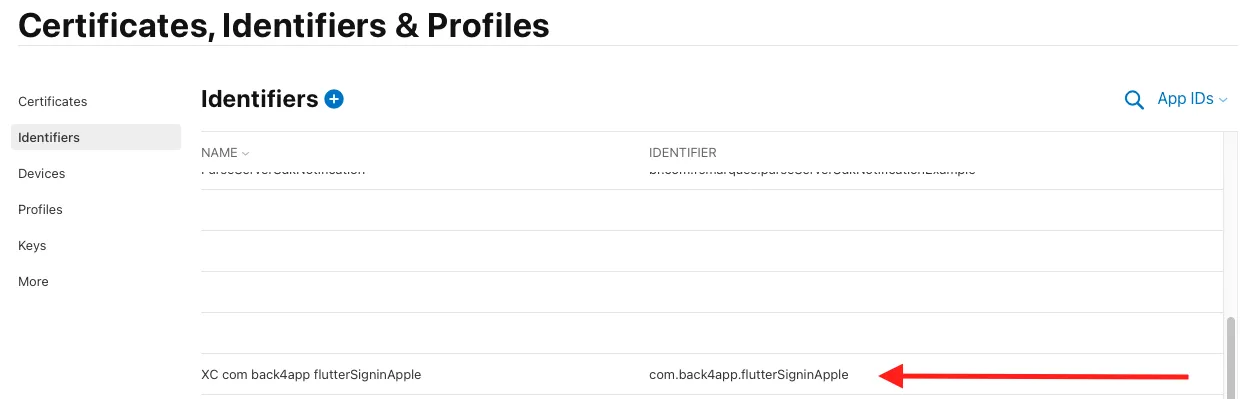
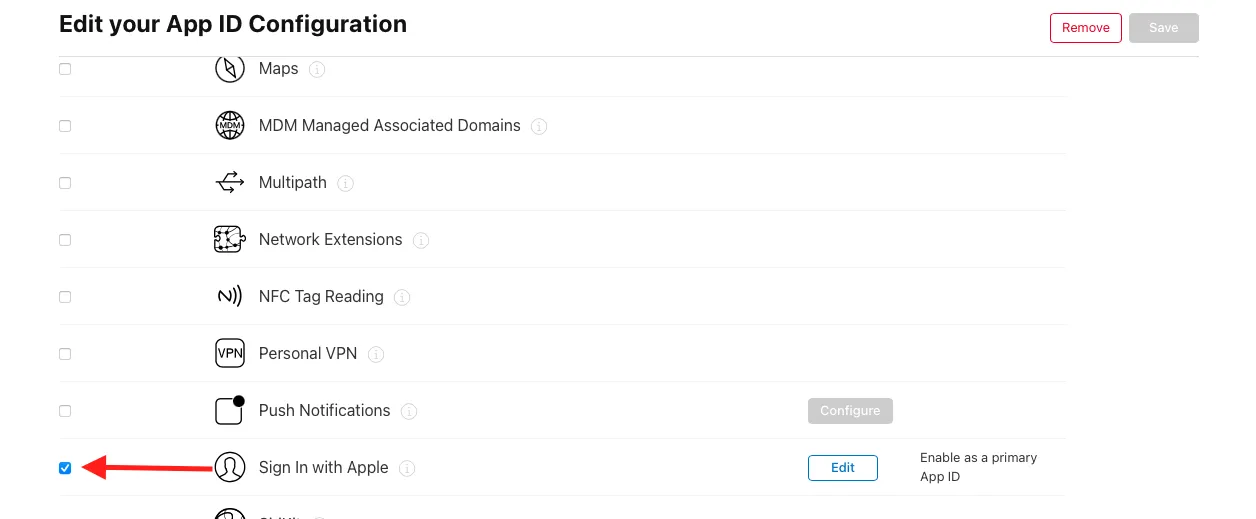
Click the Bundle Identifier and scroll down. Check if the Sign In with Apple is selected
Click Edit and make sure the Enable as a primary App ID is selected
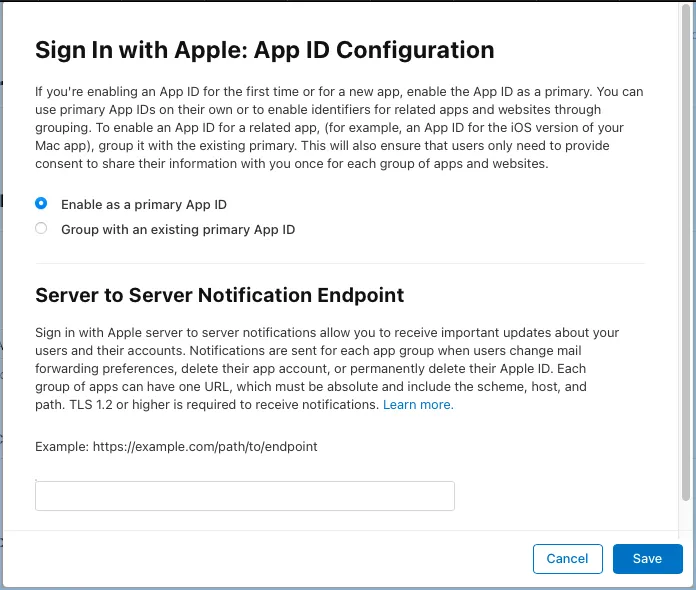
If everything is right, save and exit.
3 - Set up Parse Auth for Apple
Go to Back4App website, log in and then find your app. After that, click on Server Settings and search for the Apple Login block and select Settings.
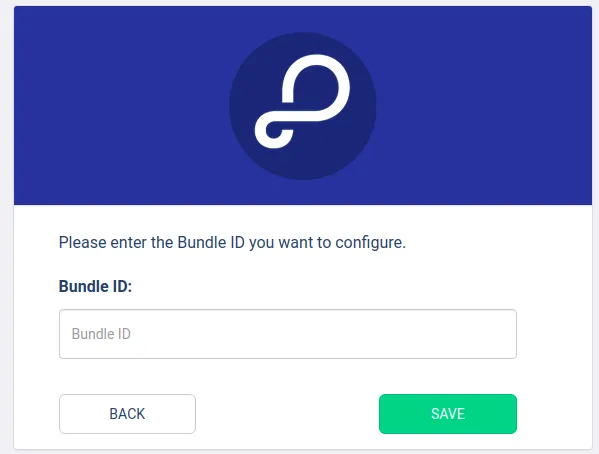
The Apple Login section looks like this:
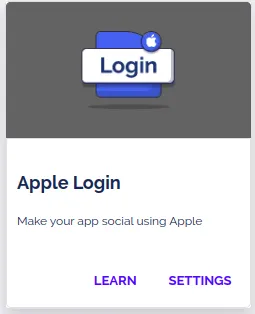
Now, you just need to paste your Bundle ID in the field below and click on the button to save.
In case you face any trouble while integrating Apple Login, please contact our team via chat!
4 - Add the Sign In with Apple
Now that you have the project set up, we can get the user data and sign in to Parse.
According to the documentation, we must send a Map with user authentication data.
1         final credential = await SignInWithApple.getAppleIDCredential(
2           scopes: [
3             AppleIDAuthorizationScopes.email,
4             AppleIDAuthorizationScopes.fullName,
5           ],
6         );
7
8         //https://docs.parseplatform.org/parse-server/guide/#apple-authdata
9         //According to the documentation, we must send a Map with user authentication data.
10        //Make sign in with Apple
11        final parseResponse = await ParseUser.loginWith('apple',
12            apple(credential.identityToken!, credential.userIdentifier!));
5 - Sign in with Apple from Flutter
Let’s now use our example for Sign in with Apple in Flutter App, with a simple interface.
Open your Flutter project, go to the main.dart file, clean up all the code, and replace it with:
1   import 'package:flutter/material.dart';
2   import 'package:parse_server_sdk_flutter/parse_server_sdk.dart';
3   import 'package:sign_in_with_apple/sign_in_with_apple.dart';
4
5   void main() async {
6     WidgetsFlutterBinding.ensureInitialized();
7
8     final keyApplicationId = 'YOUR_APP_ID_HERE';
9     final keyClientKey = 'YOUR_CLIENT_KEY_HERE';
10    final keyParseServerUrl = 'https://parseapi.back4app.com';
11
12    await Parse().initialize(keyApplicationId, keyParseServerUrl,
13        clientKey: keyClientKey, debug: true);
14
15    runApp(MyApp());
16  }
17
18  class MyApp extends StatelessWidget {
19    Future<bool> hasUserLogged() async {
20      ParseUser? currentUser = await ParseUser.currentUser() as ParseUser?;
21      if (currentUser == null) {
22        return false;
23      }
24      //Checks whether the user's session token is valid
25      final ParseResponse? parseResponse =
26          await ParseUser.getCurrentUserFromServer(currentUser.sessionToken!);
27
28      if (parseResponse?.success == null || !parseResponse!.success) {
29        //Invalid session. Logout
30        await currentUser.logout();
31        return false;
32      } else {
33        return true;
34      }
35    }
36
37    @override
38    Widget build(BuildContext context) {
39      return MaterialApp(
40        title: 'Flutter - Sign In with Apple',
41        theme: ThemeData(
42          primarySwatch: Colors.blue,
43          visualDensity: VisualDensity.adaptivePlatformDensity,
44        ),
45        home: FutureBuilder<bool>(
46            future: hasUserLogged(),
47            builder: (context, snapshot) {
48              switch (snapshot.connectionState) {
49                case ConnectionState.none:
50                case ConnectionState.waiting:
51                  return Scaffold(
52                    body: Center(
53                      child: Container(
54                          width: 100,
55                          height: 100,
56                          child: CircularProgressIndicator()),
57                    ),
58                  );
59                default:
60                  if (snapshot.hasData && snapshot.data!) {
61                    return UserPage();
62                  } else {
63                    return HomePage();
64                  }
65              }
66            }),
67      );
68    }
69  }
70
71  class HomePage extends StatefulWidget {
72    @override
73    _HomePageState createState() => _HomePageState();
74  }
75
76  class _HomePageState extends State<HomePage> {
77    @override
78    Widget build(BuildContext context) {
79      return Scaffold(
80          appBar: AppBar(
81            title: const Text('Flutter - Sign In with Apple'),
82          ),
83          body: Center(
84            child: SingleChildScrollView(
85              padding: const EdgeInsets.all(8),
86              child: Column(
87                crossAxisAlignment: CrossAxisAlignment.stretch,
88                children: [
89                  Container(
90                    height: 200,
91                    child: Image.network(
92                        'http://blog.back4app.com/wp-content/uploads/2017/11/logo-b4a-1-768x175-1.png'),
93                  ),
94                  Center(
95                    child: const Text('Flutter on Back4App',
96                        style:
97                            TextStyle(fontSize: 18, fontWeight: FontWeight.bold)),
98                  ),
99                  SizedBox(
100                   height: 100,
101                 ),
102                 Container(
103                   height: 50,
104                   child: ElevatedButton(
105                     child: const Text('Sign In with Apple'),
106                     onPressed: () => doSignInApple(),
107                   ),
108                 ),
109                 SizedBox(
110                   height: 16,
111                 ),
112               ],
113             ),
114           ),
115         ));
116   }
117
118   void doSignInApple() async {
119     late ParseResponse parseResponse;
120     try {
121       //Set Scope
122       final credential = await SignInWithApple.getAppleIDCredential(
123         scopes: [
124           AppleIDAuthorizationScopes.email,
125           AppleIDAuthorizationScopes.fullName,
126         ],
127       );
128
129       //https://docs.parseplatform.org/parse-server/guide/#apple-authdata
130       //According to the documentation, we must send a Map with user authentication data.
131       //Make sign in with Apple
132       parseResponse = await ParseUser.loginWith('apple',
133           apple(credential.identityToken!, credential.userIdentifier!));
134
135       if (parseResponse.success) {
136         final ParseUser parseUser = await ParseUser.currentUser() as ParseUser;
137
138         //Additional Information in User
139         if (credential.email != null) {
140           parseUser.emailAddress = credential.email;
141         }
142         if (credential.givenName != null && credential.familyName != null) {
143           parseUser.set<String>(
144               'name', '${credential.givenName} ${credential.familyName}');
145         }
146         parseResponse = await parseUser.save();
147         if (parseResponse.success) {
148           Message.showSuccess(
149               context: context,
150               message: 'User was successfully with Sign In Apple!',
151               onPressed: () async {
152                 Navigator.pushAndRemoveUntil(
153                   context,
154                   MaterialPageRoute(builder: (context) => UserPage()),
155                   (Route<dynamic> route) => false,
156                 );
157               });
158         } else {
159           Message.showError(
160               context: context, message: parseResponse.error!.message);
161         }
162       } else {
163         Message.showError(
164             context: context, message: parseResponse.error!.message);
165       }
166     } on Exception catch (e) {
167       print(e.toString());
168       Message.showError(context: context, message: e.toString());
169     }
170   }
171 }
172
173 class UserPage extends StatelessWidget {
174   Future<ParseUser?> getUser() async {
175     return await ParseUser.currentUser() as ParseUser?;
176   }
177
178   @override
179   Widget build(BuildContext context) {
180     void doUserLogout() async {
181       final currentUser = await ParseUser.currentUser() as ParseUser;
182       var response = await currentUser.logout();
183       if (response.success) {
184         Message.showSuccess(
185             context: context,
186             message: 'User was successfully logout!',
187             onPressed: () {
188               Navigator.pushAndRemoveUntil(
189                 context,
190                 MaterialPageRoute(builder: (context) => HomePage()),
191                 (Route<dynamic> route) => false,
192               );
193             });
194       } else {
195         Message.showError(context: context, message: response.error!.message);
196       }
197     }
198
199     return Scaffold(
200         appBar: AppBar(
201           title: Text('Flutter - Sign In with Apple'),
202         ),
203         body: FutureBuilder<ParseUser?>(
204             future: getUser(),
205             builder: (context, snapshot) {
206               switch (snapshot.connectionState) {
207                 case ConnectionState.none:
208                 case ConnectionState.waiting:
209                   return Center(
210                     child: Container(
211                         width: 100,
212                         height: 100,
213                         child: CircularProgressIndicator()),
214                   );
215                 default:
216                   return Padding(
217                     padding: const EdgeInsets.all(8.0),
218                     child: Column(
219                       crossAxisAlignment: CrossAxisAlignment.stretch,
220                       mainAxisAlignment: MainAxisAlignment.center,
221                       children: [
222                         Center(
223                             child: Text(
224                                 'Hello, ${snapshot.data!.get<String>('name')}')),
225                         SizedBox(
226                           height: 16,
227                         ),
228                         Container(
229                           height: 50,
230                           child: ElevatedButton(
231                             child: const Text('Logout'),
232                             onPressed: () => doUserLogout(),
233                           ),
234                         ),
235                       ],
236                     ),
237                   );
238               }
239             }));
240   }
241 }
242
243 class Message {
244   static void showSuccess(
245       {required BuildContext context,
246       required String message,
247       VoidCallback? onPressed}) {
248     showDialog(
249       context: context,
250       builder: (BuildContext context) {
251         return AlertDialog(
252           title: const Text("Success!"),
253           content: Text(message),
254           actions: <Widget>[
255             new ElevatedButton(
256               child: const Text("OK"),
257               onPressed: () {
258                 Navigator.of(context).pop();
259                 if (onPressed != null) {
260                   onPressed();
261                 }
262               },
263             ),
264           ],
265         );
266       },
267     );
268   }
269
270   static void showError(
271       {required BuildContext context,
272       required String message,
273       VoidCallback? onPressed}) {
274     showDialog(
275       context: context,
276       builder: (BuildContext context) {
277         return AlertDialog(
278           title: const Text("Error!"),
279           content: Text(message),
280           actions: <Widget>[
281             new ElevatedButton(
282               child: const Text("OK"),
283               onPressed: () {
284                 Navigator.of(context).pop();
285                 if (onPressed != null) {
286                   onPressed();
287                 }
288               },
289             ),
290           ],
291         );
292       },
293     );
294   }
295 }
Find your Application Id and Client Key credentials navigating to your app Dashboard at Back4App Website.
Update your code in main.dart with the values of your project’s ApplicationId and ClientKey in Back4app.
- keyApplicationId = App Id
- keyClientKey = Client Key
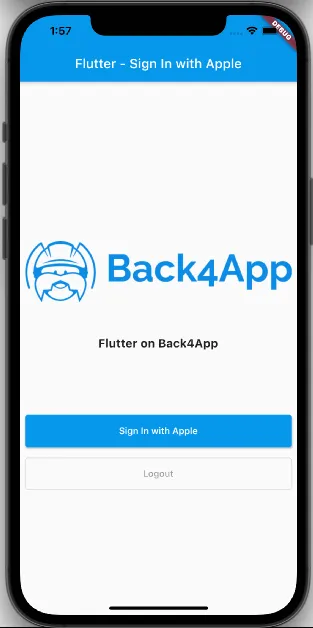
Run the project, and the app will load as shown in the image.
Conclusion
At this stage, you are able to use Sign in with Apple in Flutter on Back4app.